
Practive Security 101: Safe Web Browsing
Purpose
This article is intended to provide you with a basic understanding of the threats present to you when you use a web browser to access Internet resources, and to equip you with strategies and practices to improve both your online privacy and your assets. Use this to protect your mind and your property.
Bottom Line Up Front (BLUF)
There are three aspects to defend related to web browsers and Internet websites: your mind (what you see), your privacy (what you share or expose), and your property (your device).
Use FireFox, DuckDuckGo, or Safari browsers only; never use Google Chrome, Microsoft Edge, or browsers built into social media websites like Facebook.
As you access online content, your web browser is running code served to it through an ecosystem of online resources connected through layers and integrations; there are many holes that can be exploited.
Malicious actors are constantly scanning the entire Internet for weaknesses in websites or web services that they can exploit; often injecting malicious code into legitimate websites or ad networks. Just because the website belongs to a reputable source does not mean it’s “safe.”
Keep your browser up to date with the latest version.
Use a web content filtering service to prevent malicious code from entering your browser.
Protect your privacy and security by changing your default browser search settings to use DuckDuckGo rather than Google.
Check search results for “ad” or “sponsored” labels and skip those; instead scroll down the page of results and find the one that best matches your interest.
Rather than clicking links when you see an ad or external reference, open a new tab and browse to the referenced website and search for the item or object of interest.
Use built-in safe search options, cookie blocking, and pop-up blocking to protect your mind, your privacy, and security.
Browser Functionality
Your web browser is a door to the outside digital world, but that door also allows things in. On a technical level, the web browser is the means by which web-based code served from websites and other online resources is received and translated by your computer. That code is interpreted by your browser and rendered visually, but it is also doing things in the background that are transparent to you.
Most web pages are actually a compilation of code that includes micro-code, external references, and additional content pulled from other websites. The particular website you browse to oftentimes has no control over the external content that they pull into their website. This is all part of processing web-based content through that door to the Internet called Safari, or FireFox, or Edge, or Chrome. It is a good idea to remember this; that your browser is a code translator that is executing functions on your computer transparently in order to provide you with the experience you see and interact with. It is also good to remember, that all this code is served through distributed networks of joined Internet services, well beyond the control of the Internet service you mean to interact with directly.
The Internet is filled with websites, infrastructure, and services that all work together through layers of dependencies, transparently, to serve you content. Some of these ecosystems of services are designed to redirect your browser, or retrieve code, or push ads and other content into your experience that all ads layers to your web browsing experience.
For example, if you browse to your favorite news or information website, if there are any pop-ups or side-bars or smaller windows of content, it’s very likely that the website itself is simply using web hooks that pull that content from other websites and feed it to your browser in one combined experience.
In my home page on FireFox, I am presented with the following (see screen shot below). Each of these website tiles (Amazon, Expedia, Hotels etc.) are created using snippets of code from external sources. The tiles labeled "sponsored" are part of advertisement networks, not owned or operated by FireFix. In the top right corner of the screen, there is also a weather widget that is populated using code from another external source not owned or managed by FireFox. So from this one example, you can see how a single page is actually the composition of code served from many different web properties and services, each which has the potential of being compromised and hijacked to serve malicious code, or having their own privacy politics that might compromise my values and standards.

Relevant Threats
Privacy
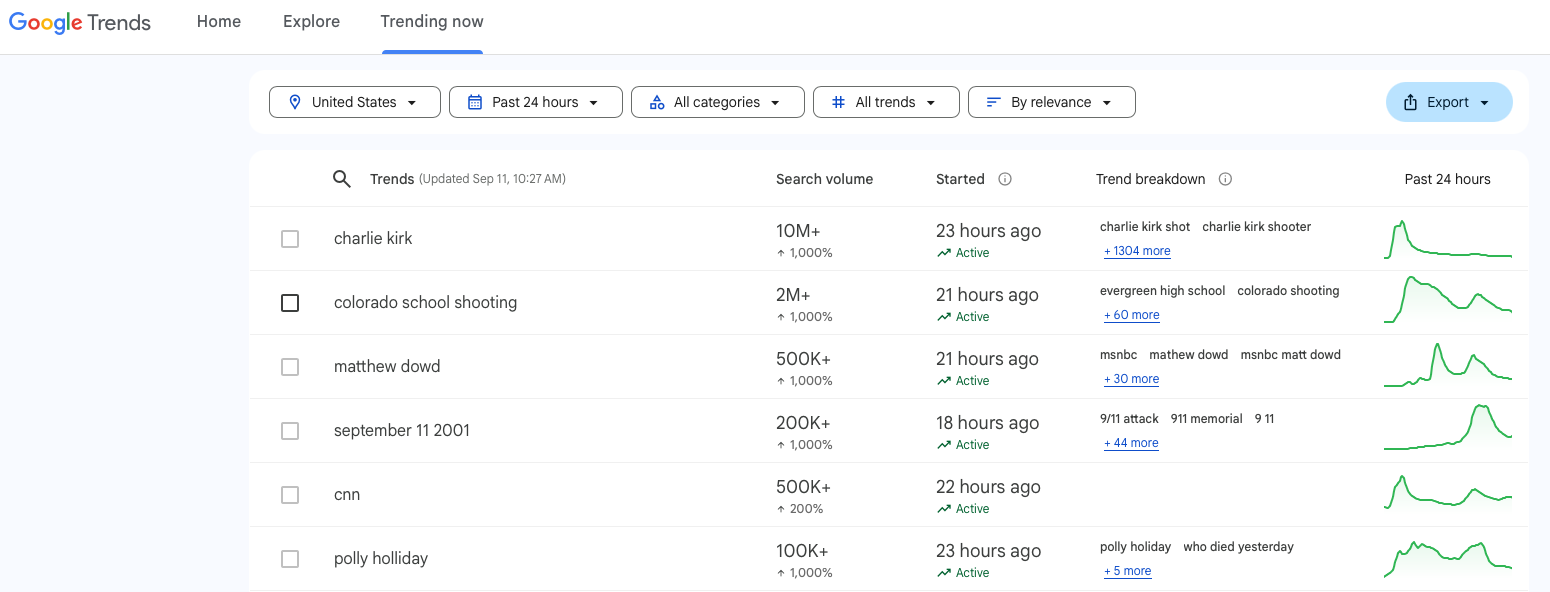
Know that much of the Internet experience today is crafted by targeted advertisements, sponsored content, and web-based trackers. Whenever you search for something via a popular search engine like Google, that search request is collected, recorded, and analyzed by Google. But additional information is also transmitted to Google along with that. This information is used to understand the source and can include digital fingerprinting that points to you. By way of reference, look at trends.google.com which compiles and categorizes what people are searching for. You can set filters to look at this by categories, region, and time. What isn’t shown is what Google is also collecting from individuals by way of their browsers, but it’s information that allows them to track you individually. Know that all your search activity is collected by Google, used by Google, sold by Google, and even summarized and made public by Google.
In addition to this, many websites have what is called tracking code that is built-in, which also collects information about you as you interact with the website. These trackers also serve you web cookies that are saved into your browser and are used to monitor your browsing activity, which is sent to the website operator. This is functionally how a website “remembers” that you have visited it and also how website shopping carts remember that you were in the process of purchasing something. Whether by cookie or active code, websites are monitoring and recording your interactions, and often sharing or selling that information with larger affiliate networks and data brokers.
However, all of these digital trackers are collecting information about you that describes what you are doing and can identify who you are. Big data brokers like Google work aggressively to collect and purchase this information, which they can stitch together digitally to create a profile about you or about people groups in general. This cumulative information is often sold by the data brokers to advertisers and researchers, but also to retailers and others who use the data for any number of purposes.
Know that your web browser is essentially a spy that is constantly telling the Internet everything you are doing, and enabling websites and web applications to track and monitor you.
Manipulation in Search Results
One of the most common things we use web browsers for is to search the Internet to find information or to find websites or web-based services.
Search engines like Google, Bing, DuckDuckGo, and now AI agents like Grok, Gemini and others, are the tools we use to perform these searches. Unfortunately, they do not provide you pure search results that best match what you are looking for. Instead, they often serve you search results that others have paid for or have paid to have listed at the top of the list of search results.
AI does not function as an intelligence; it does not reason. It simply aggregates information based on pre-defined algorithms and mathematical computations on information the AI model has access to, and then renders the most probabilistically relevant result. This does not mean it will match what you are looking for, nor does it mean it is correct. It’s best to think of AI search results as the summarization of what was most common among the sources it searched. If all its sources are inaccurate or irrelevant, so will your results be.
But whether you are using a default search engine like Google or Bing, or an AI-powered engine, know that the results are not pure. They are not designed to give you the best match for what you are looking for. They are designed to elevate to your attention the results they want to serve you based on who has paid or coded to have them listed and ranked on top.
This can be highly manipulative in that it can direct you to websites or properties or content that are not exactly what is in your best interest. But once you are aware, you are influenced.
Additionally, many of these sponsored results are part of content distribution or advertisement networks that will direct your web browser through multiple layers of web services that collect information about you, install trackers in your browser, and are generating information that can be sold or otherwise used by the advertiser.
Fortunately, most of these forced or pushed search results will be labeled as “sponsored” or “ad” so you can spot them and avoid them.
As one example, today I searched Google for “Apple iPhone 15,” because I want to know about its specs and release date. I wanted web results that describe what that device is. However, the top search results served to me were links to online retailers who sell the iPhone 15, with the results prominently listing the current sale price.
Below these I was served a sponsored link to Apple.com, but not to a page that described the iPhone 15. Instead, that result linked me to Apple’s new product release page for the iPhone 17. Not at all what I wanted.
I had to browse down the page through several layers of results to find a website that described the specifications of the iPhone 15 - which is what I wanted.
While this may be a benign example, it illustrates the point of the manipulative nature of search result providers.
Harmful, Unwanted, and Unknown Content
Because the Internet is open and can be used by anyone in the world to publish any content they would like to, it is relatively easy to be exposed (accidentally or incidentally) to unwanted or harmful content. This is a bit subjective as it depends on your moral values and your personal maturity.
The risk here has multiple aspects. One is simply exposure to content that is harmful in nature in how it conflicts with your values. But for children or immature individuals, exposure to ideas, websites, words, images etc. can set them on a path of curiosity that can lead them to harm. This is actually often how online radicalization begins; introduction to a foreign concept. But I’m sure we can all relate to wishing we were ignorant of something or wishing we hadn’t seen something. That’s because words and images stick in our memory and they influence what we are aware of and thinking about. Not to mention the fact that dynamic content clutters up websites and steals our attention.
In addition to this, it is also often the case that websites that are related to “mature” content or themes are targeted by hackers, malicious actors, and predators of all sorts. The reasons behind this vary based on the individual actor, but it may be that many people who are compromised via these sites would not want to admit it to others, and so they are more likely to give in to extortion demands. Additionally, websites that deal in morally questionable content also sometimes cross the line into illegal activity, or attract patrons who cross moral boundaries without the concerns you may have.
It is also important to recognize that new websites are being created and changed on a constant basis, and hackers know that it takes time for security services and content filtering services to find them, categorize them, and add them to block lists. For this reason, hackers tend to create new websites and publish ads or generate spam to draw people to them, or they will compromise an existing website or ad network that has a main purpose that they can use for an ulterior purpose.
To help protect from all these threats, trusted Browsers and Web Content Filters can be used to block websites by category, content, and nature.
Malicious Code
Unfortunately, hackers and malicious actors are constantly scanning the Internet and everything connected to it to find weaknesses they can exploit. Operators of websites and web applications have to be diligent about scanning their own code to see if it contains bugs or vulnerabilities that can be used by these malicious actors, and they have to fix those issues as quickly as possible to prevent their customers from being victimized. But not all organizations are diligent about this, and so there are always vulnerable systems that hackers can compromise and use to pollute the otherwise “normal” Internet.
As Internet-based networks are increasingly distributed and built on ecosystems managed by numerous providers, ownership of code and responsibility for securing it can be difficult to track. It becomes a shared responsibility of all; a weakness in one can lead to the compromise of all.
Ad networks and affiliate networks have been often targeted and used as a means to poison websites and web services with malicious code that attacks web browsers, forcing them to perform damaging actions on the computers upon which they run.
Think of it this way. If you run a website, and you want to use a 3rd party service to load features or code on your website, then you create space in your website code for their web code to run. You are essentially trusting that their code is safe and secure. But what if that 3rd party also uses a 3rd party or another external integration to another Internet service that has some weakness. If code can pass from one service into another, then a normally good website can be hijacked into serving malicious code that attacks your computer through your browser.
The purpose of the malicious code can vary.
Web Browser Exploitation
As your web browser is loading and processing code from web-based properties, the code can be malicious in nature and can render harm to your browser or computer. Some of the most common things malicious code can do includes:
Run malicious commands or code within your browser as an application
Change the configuration settings of your browser to open it up to further exploitation
Implant web trackers or cookies that harvest and send sensitive information
Hijack your browser and use it like a proxy to generate new Internet connections
Install malware on your computer
Mitigation Strategies
Browser Selection
It is important to select a web browser that prioritizes privacy and security by default. Practive Security recommends the following:
For Windows, OS X, iOS and Android:
DuckDuckGo
FireFox
Safari (OS X and iOS only)
Once installed, open your preferred browser and answer the prompts to set it as default. To manually set the default browser:
On OS X
Click the Apple icon in the top left corner of your screen and click System Settings
On the left side of the System Settings window, click Desktop and Dock
On the right side of the screen under Desktop and Dock, scroll down to “Default web browser” and change to your preference.
On Windows
Click the Windows icon at the bottom of your screen
Click Settings to open the system settings window
Click the Apps menu item on the left of the window
On the right side of the Apps menu, click Default apps
On the right side of the menu, scroll down to find your preferred browser, then click it and at the top of the screen, click the Set default button.
On iOS
Tap the settings app
Scroll down to Apps and tap to open
Tap the Default Apps menu
Scroll to Browser App and change to your preference
On Android
Tap the settings app to open
Scroll down to Apps and tap to open
Tap the Default Apps menu
Tap Browser app to select your preference
Search Engine
Use DuckDuckGo exclusively as your search engine. Do not use Google, nor Siri, nor any of the AI-powered engines like Grok, Gemini, ChatGPT etc.
To change your default search engine in FireFox on OS X:
Click Firefox at the top of your desktop screen (the application menu bar)
Click Settings
In the Search menu, change the Default Search Engine option to DuckDuckGo
In FireFox on Windows:
In the top right corner of the browser window, click the icon of three vertical lines
Click Settings from the menu
In the Search menu, change the Default Search Engine option to DuckDuckGo
In FireFox on iOS
In the bottom right corner of the browser window, click the three horizontal dots
Click Settings from the menu
In the Search menu, change the Default Search Engine option to DuckDuckGo
In FireFox on Android
In the top right corner of the browser window, click the icon of three vertical dots
Click Settings from the menu
In the Search menu, change the Default Search Engine option to DuckDuckGo
Secure Your Browser Settings
In the DuckDuckGo Settings window, ensure the following are all set to “on”
Private Search
Web Tracking Protection
Threat Protection
Cookie Pop-Up Protection
In FireFox Settings under Privacy & Security, choose “Standard” as your default Privacy profile. Also ensure the following settings are set (scroll down the same page):
Under Passwords, “Ask to save passwords” - make sure this box is not checked (empty)
Under Autofill - make sure all boxes are not checked (empty)
Under Permissions -
Make sure “Block pop-up windows” is enabled / checked (checkmark)
Make sure “Warn you when websites try to install add-ons” is enabled / checked
Under Autoplay → Settings, set Default for all websites to “Block Audio and Video”
Under Security - check to enable all boxes under Deceptive Content and Dangerous Software Protection
Updates
Along with secure settings, make sure your browser is kept up to date with the latest version. Check your browser settings menu or about page for details. Often browsers will have a visual indicator (such as an icon or banner) that will imply an update is available.
Practive Security recommends updating your browser within 1 week from any release update, if not sooner.
Manage Cookies
Website cookies are small bits of code that are saved into our browsers. They are multi-purposed, but primarily are used to collect information from our browsing activity. The information they collect is stored within our browser and also transmitted to website operators and other external parties.
Cookies were originally designed for good purposes; they are used to maintain your session and store things like your login information, items in your shopping cart, website preferences, and to store local references that the website used to know what sort of access and experience to provide you.
However, in recent years, cookies have been repurposed both by legitimate web service providers and also by criminals and malicious actors.
Practive Security recommends a minimalist approach when dealing with cookies. You have to accept some in order for most websites to function properly, but if you accept cookie settings that are too broad, you can open your browser up to exploitation.
When prompted, we recommend choosing the “only required” or “minimal.” Never accept all cookies unless you are confident that the website your are accessing is safe, secure, and you accept expanded information collection by them.
Practice Safe Search Results
It is critically important to understand that search engines like Google and even DuckDuckGo, do not by default provide you with search results ranked by those that most correctly match your search criteria. Instead, they list in order websites that their advertisers, customers, and partners have paid them to list first.
Most of these paid-for results will appear within the top 5-10 search results and will be marked as Ad or Sponsored so you can easily spot them.
But in addition to paying a search engine provider to have your website or ad published first, Google also offers a service to their customers and partners which allows them to request a particular search result be pushed down the list of results. This is often used by companies who want to make sure their website is ranked higher than their competitors, but it is also used by Google in cases where a fraudulent or deceptive website is incidentally ranked higher than legitimate websites.
When clicking on an Ad or Sponsored result, you are actually subjecting your browser to advertising networks which can redirect your connection through multiple layers of services before you finally land on the desired website. Through this series of redirections, comes opportunities for your browser to be exposed to malicious content or to have trackers spy on what you are doing.
It is best to always scroll down through the Ad or Sponsored search results, and look for results that link to official websites and actually match your search criteria.
It is also important to be as specific as possible with your search criteria, to best match you with a specific website.
Content Blocking
When it comes to Internet browsing, one of the realities we have to face is that the Internet is totally open and accessible by anyone. That means that anyone can be creating websites or posting content or sharing media that might be morally questionable to us or may violate our principles and values. Some content can be harmful in nature.
It is difficult to know when or where these lines will be crossed on the Internet, however there are service providers who work to do that by categorizing websites based on the nature of the site and the content it hosts. This isn’t an exact science, but it’s pretty good.
Leveraging a web content filtering service will enable you to choose what sorts of websites, web services, and web content you will be able to access, or those under your care will be able to access.
Fortunately, DuckDuckGo has a built-in feature called “Safe Search” which you can set to different levels of protection. When used, search results and related content will be limited to what DuckDuckGo has deemed to be “safe.” This typically excludes what might be called “adult” or “mature” content (including images) as well as content that might be considered malicious or harmful in nature.
A strong defense includes using a service you subscribe to. There are many options to consider, but primarily there are three models that are used:
Software installed on your computer or device such as Canopy or Qustodio
Note: some AntiVirus/AntiMalware software will also offer this service
Software that runs on your WiFi router and controls what all devices on the network can access
A setting on a computer or WiFi router that checks with an external content filtering service before allowing a connection to be made like OpenDNS
Practive Security recommends the WiFi router path, because it is the easiest to deploy and control, with almost no risk that someone will uninstall the content filtering software from their device, or change it’s settings.
However, the software based tools are great as well.
Either way, review options available and choose a solution that will work for you. Make sure you configure the blocking policies based on your standards and values for yourself and your home.
Also know that from time to time these content filters will fail or will block access that you want to allow. You will need to maintain the filters and change settings from time to time. It is also a good idea to check what they are blocking so you know what people on your network are trying to access.
Exploit Protection
DuckDuckGo and FireFox both have built-in security features (if enabled) that will protect your browser from running malicious or harmful code that it is served from websites and web-based services.
However, it is also good to address security in layers of defenses.
Practive Security recommends that in addition to browser security features, that you use an Antimalware service that supports Web Protection. Each vendor will have their own way of describing these features, but you are looking for anything that monitors your web activity and automatically detects and blocks threats or exploit attempts.
Additionally, leveraging your home WiFi router’s website content filtering and attack protection services will help detect and stop harmful content before it reaches your web browser or your computer.
Conclusion
It is important to remember that your browser is a door to the Internet, and that door allows you access out, but also allow the Internet access in.
We must be diligent to make sure that we are safeguarding our minds, hearts, and property to avoid exposure to unwanted and harmful content.
Use a safe Browser and Search Engine, be diligent about search results, avoid ads and sponsored content/links, and use Content Filtering to avoid unwanted content.